The platform secrets that give you an edge
Everyone talks about what to study for EPSO. Very few talk about how the test actually works once you're sitting in front of it.
The TAO platform — EPSO's new testing system since January 2026 — has quirks, hidden features, and design choices that catch candidates off guard. Knowing them in advance is like having a map of the exam room before you walk in.
Here are 10 things nobody tells you about the EPSO TAO platform — and exactly how to use each one to your advantage.
1. The timer is tiny and easy to miss
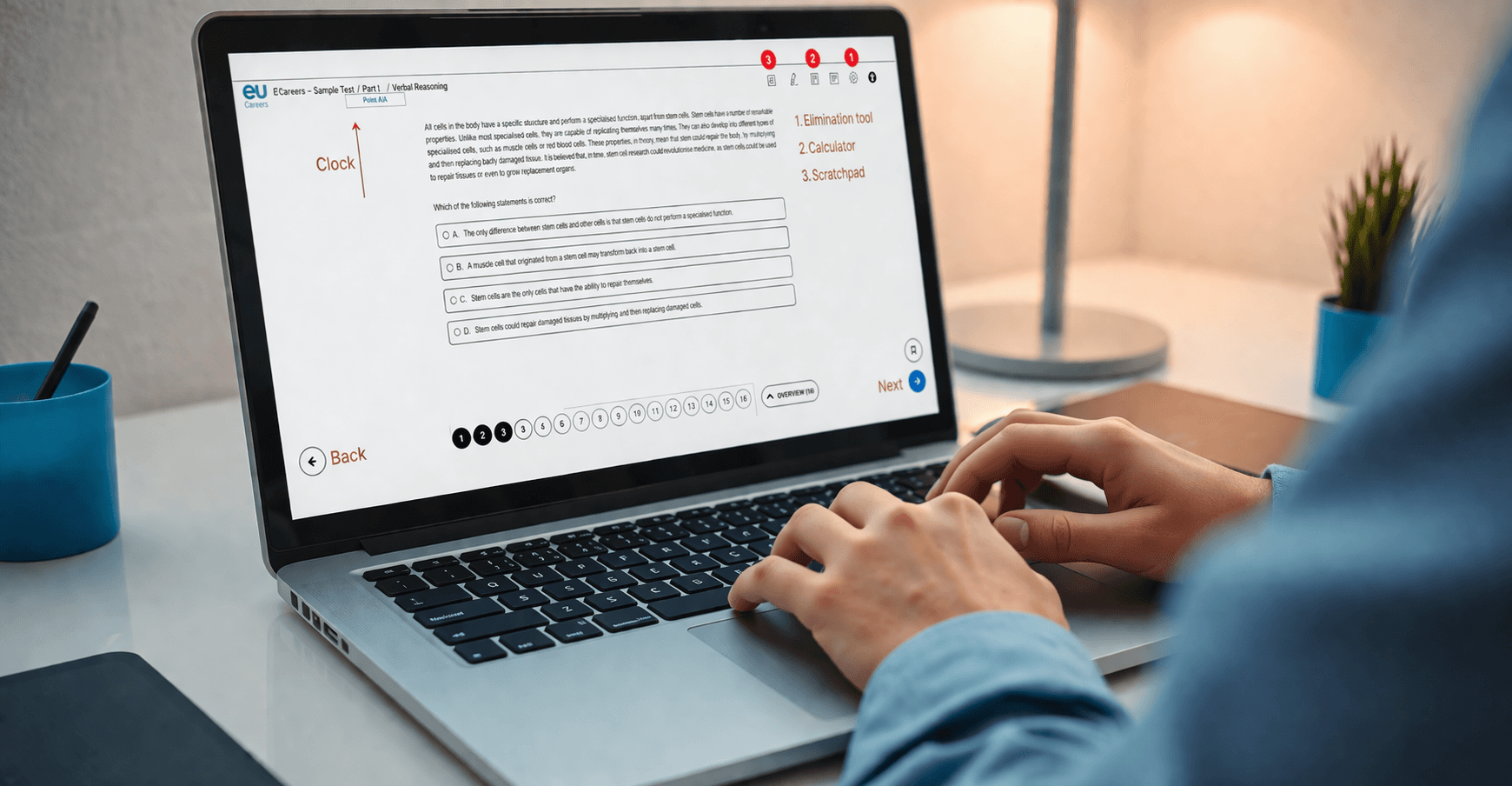
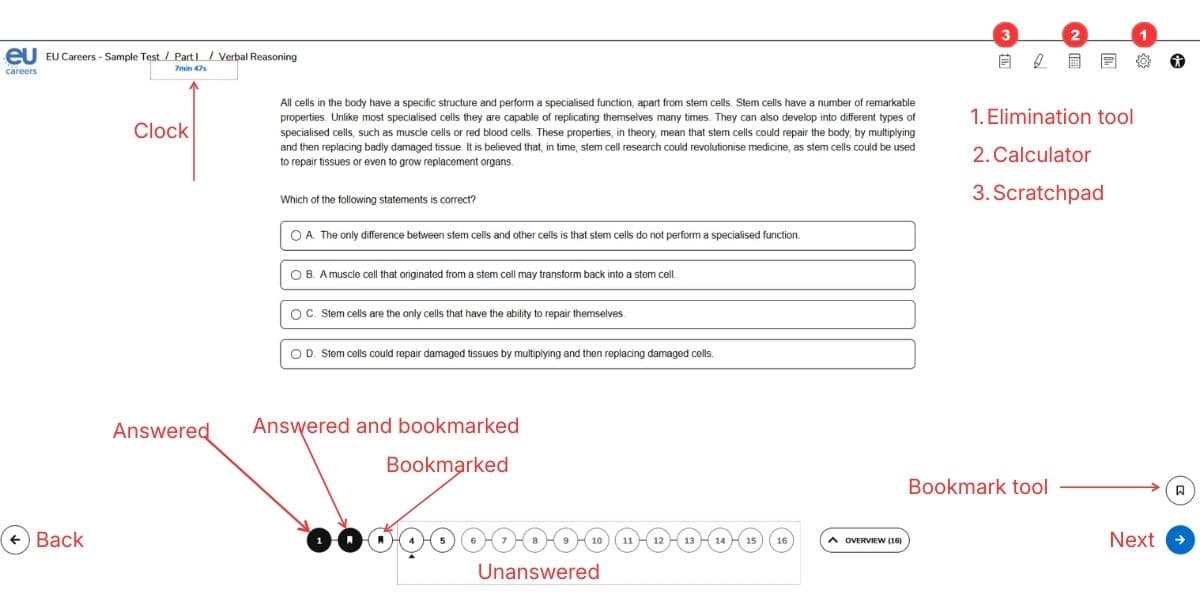
The countdown timer sits in the top-left corner of the screen, in a small font that blends with the interface. Many candidates don't notice it until they're running dangerously low on time.
This isn't a bug — it's by design. EPSO tests your time management alongside your reasoning skills.
What to do: Build a habit of glancing at the timer every 5 questions. If you're spending more than your allocated time per question (roughly 1:45 for VR, 2:00 for NR), move on immediately and come back later.
2. Answer Elimination: enable it BEFORE you start
The Answer Elimination tool is arguably the most useful feature on the entire platform. It lets you visually strike through answer options you've ruled out — making it dramatically easier to focus on the remaining choices.
But here's the catch: you must enable it in the Settings menu before starting Question 1. If you forget, you cannot activate it for the entire test.
What to do: When the platform loads, go to Settings first. Enable Answer Elimination. Only then begin your test. Make this step automatic — like putting on your seatbelt before driving.
3. Three separate timed tests, submitted independently
Many candidates assume the exam is one continuous session. It's not. You complete three (or more) separate timed blocks, and you submit each one independently:
- Verbal Reasoning → Submit → Brief pause
- Numerical Reasoning → Submit → Brief pause
- Situational Judgement / Abstract Reasoning → Submit → Done
For AD5, additional blocks follow (EU Knowledge, Digital Skills, written essay).
The critical detail: Once you submit a block, you cannot go back. That Verbal Reasoning question you were unsure about? It's locked in the moment you click Submit.
What to do: Never submit a block with time remaining unless you've reviewed every flagged question. Use every second.
4. The calculator display is annoyingly small
TAO provides a basic calculator for Numerical Reasoning — but even at maximum size, the display font is small and hard to read, especially under pressure.
The good news: the calculator supports keyboard input, which is both faster and more reliable than clicking the tiny on-screen buttons.
What to do: Practice typing calculations with your keyboard. Get comfortable with the numpad. On exam day, you'll save 5–10 seconds per NR question — that's up to 100 extra seconds over 10 questions.
5. The scratchpad is mostly useless — except for text
The scratchpad comes with drawing tools, shapes, and an eraser. In theory, it's a versatile workspace. In practice, the drawing tools are clunky and slow.
The text input mode, however, is genuinely useful. For Numerical Reasoning, you can type intermediate values as you calculate, preventing errors from holding too many numbers in your head.
What to do: Ignore the drawing tools. Open the scratchpad, switch to text mode, and use it as a quick notepad for calculations and key facts.
6. There's NO spell check in the written test (EUFTE)
The EUFTE text editor looks like a simplified version of Microsoft Word — with formatting options, paragraphs, and a clean layout. But deliberately, it has no spell check.
No red underlines. No auto-correct. No grammar suggestions. You're entirely on your own.
What to do: Budget the last 5–10 minutes of your EUFTE time exclusively for proofreading. Read your text backwards (paragraph by paragraph) to catch errors your brain would normally skip.
7. Bookmarking is your strategic advantage
TAO's question navigation bar shows numbered circles at the top of the screen:
- Filled/dark circle = answered
- Empty circle = not yet answered
- Bookmark icon = flagged for review
The Overview button gives you a bird's-eye view of all questions, showing which are answered, which are blank, and which are bookmarked.
What to do: On your first pass, answer every question you're confident about. Flag anything uncertain. Then use remaining time to work through flagged questions. This two-pass approach is the single best time management strategy for EPSO.
8. The highlighter can waste your time
The highlighter offers multiple colors for marking text in Verbal Reasoning passages. It sounds useful — and it can be — but excessive highlighting costs precious seconds.
Candidates who highlight entire sentences or use color-coding systems often spend more time organizing their highlights than actually reasoning about the answer.
What to do: Highlight only the key phrase that directly supports or contradicts each answer option. One or two highlights per passage is enough. If you're highlighting more than that, you're reading, not solving.
9. The Line Reader is an underrated accessibility tool
Most candidates skip right past this one. The Line Reader masks surrounding text so you focus on one line at a time — like a reading ruler on a physical page.
For dense Verbal Reasoning passages — especially in a second language — this tool is a game-changer. It reduces visual noise and helps you process information more carefully.
What to do: Enable the Line Reader in accessibility settings. Try it during practice. Many candidates who weren't sure about it initially end up relying on it heavily during the real exam.
10. ~30% of candidates don't even show up
In the first TAO test (27 January 2026, competition EPSO/AD/425/25), EPSO invited 3,170 applicants. Only 2,249 actually connected to the platform.
That means roughly one in three candidates didn't even attempt the test. Of those who connected, ~91% completed all three blocks successfully.
What this means for you: If you show up prepared, you're already ahead of a significant portion of the competition. The pass rate looks more achievable when you realize a large chunk of applicants self-select out.
Bonus tips from the trenches
Here are a few extra insights worth knowing:
-
Configure accessibility settings before the real exam. Dark mode, high contrast, and font size adjustments are available. Find what's comfortable for you during practice, not on exam day.
-
Practice on eu-now.com's TAO simulator first. Our simulator replicates the TAO interface, including the navigation bar, timer placement, and tools — so nothing surprises you on the real day.
-
The EUFTE word counter shows both words AND characters. If the instructions specify a word limit, check both counts. They're displayed at the bottom of the editor.
-
Tables and images are available in the EUFTE editor — but they rarely affect scoring. Don't spend time perfecting table formatting when clear, well-structured paragraphs will score higher.
You're already ahead
If you've read this far, you now know more about the TAO platform than the majority of candidates who will sit the exam. You know where the timer hides. You know to enable Answer Elimination before Question 1. You know that the Line Reader exists and that bookmarking is a strategy, not a convenience.
That knowledge is your edge. On exam day, while others are figuring out the interface, you'll be focused entirely on the questions.
Walk in like you've been here before — because you have.
EU·Now replicates the TAO exam interface so you can practice in the exact same environment you'll face on test day. Start practicing at eu-now.com.